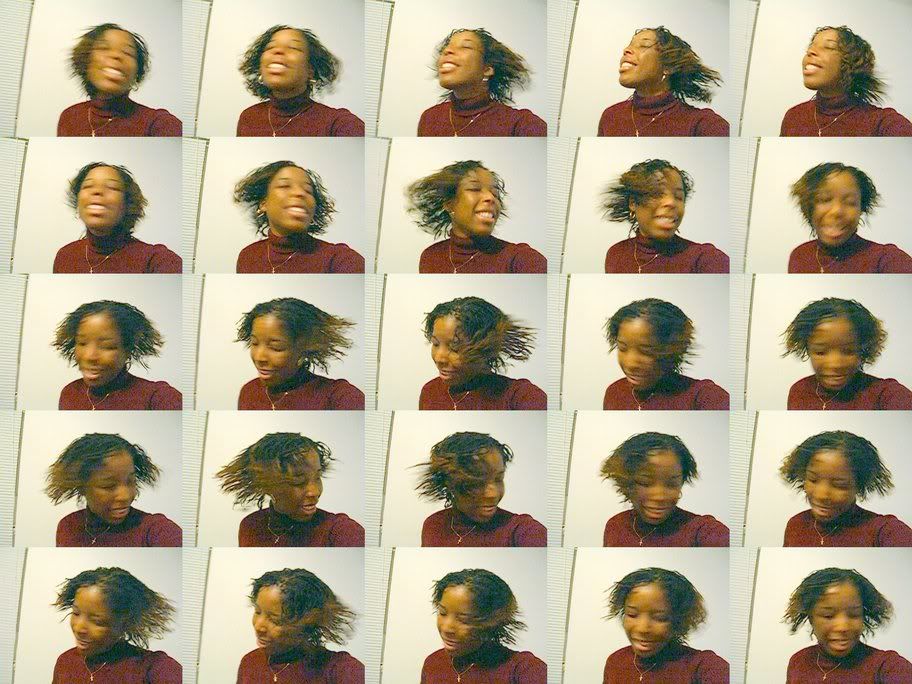
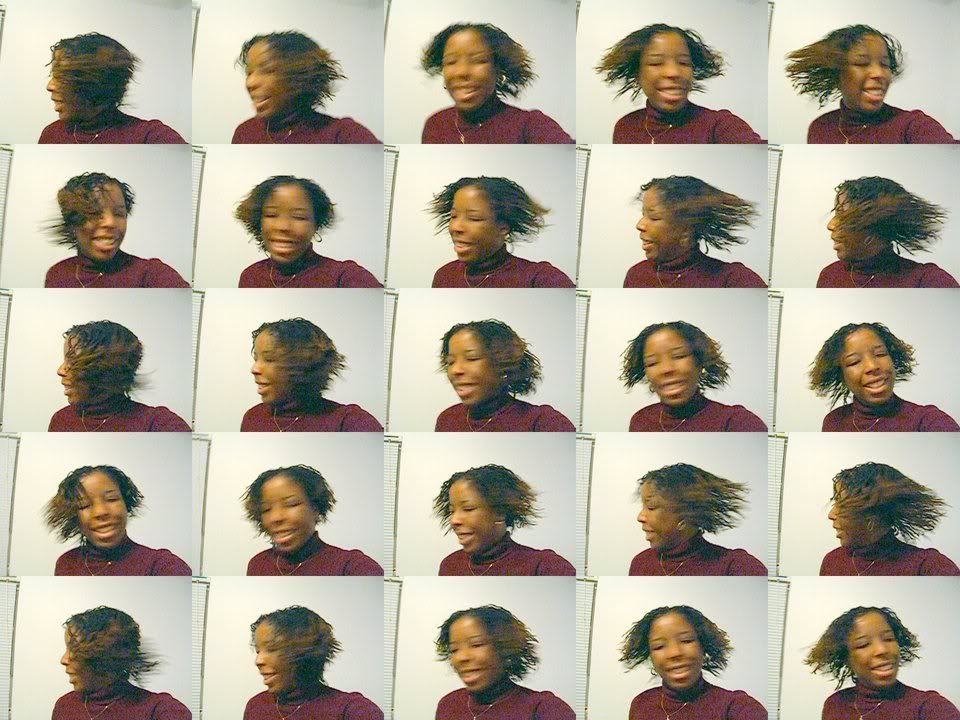
When the dust settles from teaching, perhaps over the summer, Jen and I can get our digital photography business up and running. We're getting all our equipment and gear together; we just need to get the dang business plan written so we can have our pricing firm. Until then, we'll just practice on each other. Here's some of my recent work. Make sure you turn your speakers up when you click on the remix. I think I did a good job if you ask me. Well, don't ask me, just let me know what you think. J's just so photogenic. Happy New Year!
Welcome! I'm a writer from Texas. I was locked by Imani Nash-Bey of Pomona, Ca 11-28-03. I had my Sisterlocks for about 8 years and cut them off in 2011. Currently in the process of growing my hair back and getting re-locked SOON! I'm an avid blogger and decided to share my locked growth process with easier access to the masses. If you enjoy reading 1st person narratives and looking at photos and some videos, then you'll enjoy my blog. *Please do not copy my pictures without my permission.*
Showing posts with label photo bucket. Show all posts
Tuesday, January 15, 2008
I do photography
When the dust settles from teaching, perhaps over the summer, Jen and I can get our digital photography business up and running. We're getting all our equipment and gear together; we just need to get the dang business plan written so we can have our pricing firm. Until then, we'll just practice on each other. Here's some of my recent work. Make sure you turn your speakers up when you click on the remix. I think I did a good job if you ask me. Well, don't ask me, just let me know what you think. J's just so photogenic. Happy New Year!
Find it Fast
business,
jen,
month 49,
photo bucket,
photography,
remix
Saturday, September 08, 2007
Adding a Photobucket Slideshow to your Blog
Sign into photobucket. Sign in to blogger as well. OK in photobucket, when I create a slideshow, I see after it saves, it then it allows me to name it, then appears on the screen. To the right of the slideshow it says, "Share URL, Direct Link or HTML." The one I chose to post into my blog is "HTML Tag". I copy the tag, and then go back into my blogger account. There I sign into blogger and click on "Dashboard". The choices of my blogs comes up there. Where you see your personal blog name and not the LHBE, click on "New Post". The blank new post comes up. Before you paste, click on the link to the right that says, "Edit HTML". After you click on that link, then you paste the slideshow into the post. You know you've done it right when you see the embedded link which will look something like this: embed type="application. shockwave-flash" wmode="transparent" src="http://wmg.photobucket.com/pbwet.swf?pbwurl=http://wmg.photbucket.com/
albums/v198/maryee09/Sisterlocks/FtWorth81907/b255167c.pbw" height="360" width="480">
After you see this, then click on "Preview". The slideshow should come up. Now if you want to make a comment/message about the slideshow, this is where it can get a lil' confusing. When you click on "hide preview", the slideshow disappears altogether,which gives the illusion that you deleted it. Don't panic, it's still there. Even when you click on "Compose", it still doesn't show up. Don't worry.
Click on Edit HTML again and type any word at the beginning or ending of the embedded file code. Now click on "Compose" again. You will see your word. It's at that place that you can begin to type whatever you'd like to say about the slideshow. When you click "preview" again, you'll see your message. If you want to create your message at the top of your slideshow, then start typing (while in HTML Edit mode) before the embedded code. If you want your message to be at the end, then start typing at the end of the embedded code. You can go back clean it up by adding bolds. links, etc. simply by going back to the "Compose" area after you've typed a few words to find it in the blog post.
Very Important: At the top left of your screen, you should see the name of your blog, and not the Locked Hair Blog Exchange. If you see the LHBE, you've posted in the wrong blog. You don't have to "re-do" everything you've done so far, all you have to do is go back and click on "Edit HTML" and copy everything that's in the post, go back into dashboard and click on "new post" in your blog and then paste.
Here's what I came up with while practicing going through the steps for this blog post:
Hopefully this will help those who want to add some pizazz to their blogs. If you're still confused, let me know. Technology takes a little practice, but once you're up and running, you just seem to fly!!!!! I wish you well in your continued growth in your locks, with technology and your life!
albums/v198/maryee09/Sisterlocks/FtWorth81907/b255167c.pbw" height="360" width="480">
After you see this, then click on "Preview". The slideshow should come up. Now if you want to make a comment/message about the slideshow, this is where it can get a lil' confusing. When you click on "hide preview", the slideshow disappears altogether,which gives the illusion that you deleted it. Don't panic, it's still there. Even when you click on "Compose", it still doesn't show up. Don't worry.
Click on Edit HTML again and type any word at the beginning or ending of the embedded file code. Now click on "Compose" again. You will see your word. It's at that place that you can begin to type whatever you'd like to say about the slideshow. When you click "preview" again, you'll see your message. If you want to create your message at the top of your slideshow, then start typing (while in HTML Edit mode) before the embedded code. If you want your message to be at the end, then start typing at the end of the embedded code. You can go back clean it up by adding bolds. links, etc. simply by going back to the "Compose" area after you've typed a few words to find it in the blog post.
Very Important: At the top left of your screen, you should see the name of your blog, and not the Locked Hair Blog Exchange. If you see the LHBE, you've posted in the wrong blog. You don't have to "re-do" everything you've done so far, all you have to do is go back and click on "Edit HTML" and copy everything that's in the post, go back into dashboard and click on "new post" in your blog and then paste.
Here's what I came up with while practicing going through the steps for this blog post:
Hopefully this will help those who want to add some pizazz to their blogs. If you're still confused, let me know. Technology takes a little practice, but once you're up and running, you just seem to fly!!!!! I wish you well in your continued growth in your locks, with technology and your life!
Find it Fast
blogging,
locked hair blog exchange,
photo bucket,
photo help,
photography,
slideshow
Friday, July 21, 2006
Free Photo Sharing Website-Photobucket
I wanted to share with those of you who visit my blog about one of my favorite on line photo sharing websites-Photobucket. I started using Photobucket at the suggestion of friends from my Ebay groups community of sellers to upload pictures of items I wanted to sell on Ebay. I've had an account for about 3 yrs and stopped using it briefly when I didn't pay for my premium renewal of $25 (when I was not working). When you have a premium account you can upload tons of pictures no matter how large or small and that was the biggest plus in investing in a premium account. You can have a non-paying account, which is what my was reduced to but since I had a few thousand pictures already uploaded I had reached my limit. They didn't chop me down, but they did disallow me to continue uploading more pictures. I still had the ability to share but I couldn't upload anymore.
Well, a few months went by and low and behold, Photobucket changed their tune. It may have been because of the other online photo sharing communities like fotki, snapfish, flickr, picasa and others just to name a few who were catching on to the photo community craze and were giving away more bandwith for free accounts. Photobucket got smart and did just that, but with some restrictions. Check out all their features here.
Another feature is called Photo Strip. Here the photos are displayed horizontally but smaller. This feature allows you to create a strip with 5 or 10 picture max at a time. With the exception of the nappy sister, all the pics here are my creations from photo software.
Lastly, Photobucket has the Bucket Show. This is a slide show of pics. You can put up to 10 pictures at a time in the show.
There's no controling how fast the photos change, but it is continuous like the others. The only way these pictures would cease to display is if the owner moved a picture, closed the account, or Photobucket was experiencing technical difficulties. One cool thing about sharing your photos in this manner is it reduces the probability of sticky fingers taking your original photos. Plus it adds some pizzazz to your blogs. There's lots more photobucket has, but these are a few highlights. Check it out. It offers a lot for free accounts.
Opps! I forgot one more feature: The video upload!!!!!!!! Upload your own video and share it with friends. You can embed video into your blog without having to upload it to youtube, google video, or yahoo video, which folks then have the ability to leave unwanted comments of your video. You can do this even through a free account. Sweet!! This is Red, the steer. That's me screaming. I edited it and I was saying, "Ooooo, that's nasty!!" Ugh!!!
Well, a few months went by and low and behold, Photobucket changed their tune. It may have been because of the other online photo sharing communities like fotki, snapfish, flickr, picasa and others just to name a few who were catching on to the photo community craze and were giving away more bandwith for free accounts. Photobucket got smart and did just that, but with some restrictions. Check out all their features here.
- Free accounts automatically resize large pictures that are uploaded. No problem here.
- Your account can be private with a password or public, your choice. If it is private you can email friends and family through Photobucket and they send an email out with the password attached. Then recipients can view the album at leisure.
- Another great perk with Photobucket is they allow you to resize photos that actually need to be reduced in size for various reasons. For example if you have a blogger or fotki account and you want to post your picture in your profile, you can upload the picture into Photobucket reduce it 25%, 50%, or 75% and then use the html link for the blog or save the picture onto your desktop to upload later to whatever site you want to send it to.
- A major big plus with Photobucket is you can send pictures via the internet with Photobucket by copying the picutes you upload and preview. Tons of pictures are sent either in their original form or as thumbnails that can be clicked on and they only take up like 5kb in your recipient's inbox. No more sending folks pictures that take a long time to downloand and then a long time to send and then they have to download the pictures to see them. Nope, with Photobucket, the pictures can be seen instantly. The only bad part about it is if you as the owner move the picture around from one folder to another, you will lose the direct link. Other than that, you have a feature that allows folks to save whatever pictures they want or just view them and that's all without clogging up their email with large files.
- They offer contests that you can win $2,500 for your best shot!
- You can post your pictures like Picasa to your blogs and myspace accounts.
- You can post "Bucket Stamps" which allows you to create a stamp with 4 or 9 picture max at a time. Like this one of my sister and me. I call it "Sisters".
There's no controling how fast the photos change, but it is continuous like the others. The only way these pictures would cease to display is if the owner moved a picture, closed the account, or Photobucket was experiencing technical difficulties. One cool thing about sharing your photos in this manner is it reduces the probability of sticky fingers taking your original photos. Plus it adds some pizzazz to your blogs. There's lots more photobucket has, but these are a few highlights. Check it out. It offers a lot for free accounts.
Opps! I forgot one more feature: The video upload!!!!!!!! Upload your own video and share it with friends. You can embed video into your blog without having to upload it to youtube, google video, or yahoo video, which folks then have the ability to leave unwanted comments of your video. You can do this even through a free account. Sweet!! This is Red, the steer. That's me screaming. I edited it and I was saying, "Ooooo, that's nasty!!" Ugh!!!
Find it Fast
fotki,
photo bucket,
photography,
picasa,
video
Wednesday, February 08, 2006
Continuous Shots
Subscribe to:
Posts (Atom)